
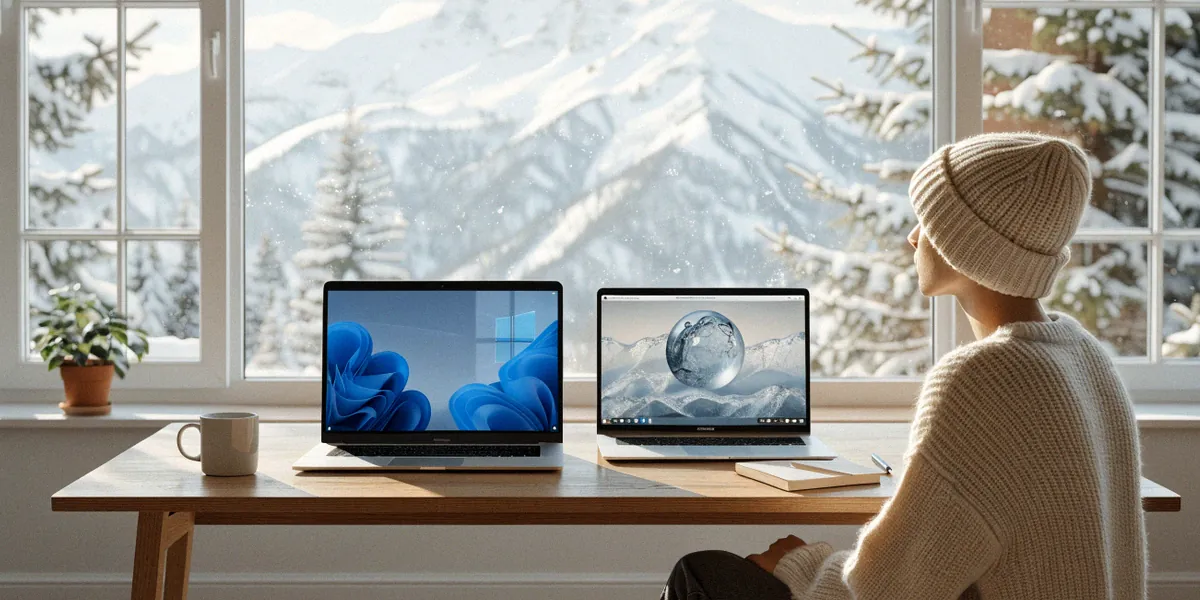
Winter Lock Screen Themes for Windows 11 and macOS
By the time January rolls around in the UK, most of us are commuting home in the dark and staring at the same tired desktop we set up back in September. Sunrise in Manchester doesn’t arrive until after 8am for much of December, and sunset in Edinburgh can land before 3:45pm. When your working day is bookended by darkness, the first screen you see each morning starts to matter more than you’d think. A frosty woodland shot or a warmly lit cottage scene can genuinely lift the mood before you’ve even opened your email. Here’s how we refresh our lock screens for winter on both Windows 11 and macOS, using built-in tools and a few trusted extras.
Why Winter Lock Screens Deserve a Refresh
Your lock screen is the handshake between you and your computer. It’s the image you see when you sit down with a coffee, and the one that greets you after every meeting. Leaving a bright summer beach photo on there in mid-December feels oddly disconnected, like wearing sunglasses in the rain. Seasonal rotation keeps that first impression fresh, and thankfully both major operating systems now make it almost effortless — Windows Spotlight pulls new imagery automatically, while macOS dynamic wallpapers shift through the day.
The psychology of seasonal desktop customisation
There’s a practical reason seasonal theming feels good. Research on workplace environment consistently shows that small, controllable changes to our surroundings reduce feelings of monotony and give a sense of agency. Changing your wallpaper is a two-minute job with an outsized effect. In winter specifically, when natural light is scarce, a screen that echoes the season — frost, bare branches, low golden light — feels coherent rather than jarring. It also gives you a gentle visual cue that time is passing, which matters during the long stretch between Christmas and spring.
How lock screens differ from screensavers
People often use the two terms interchangeably, but they do different jobs. The lock screen appears before you log in — it’s a security layer with a decorative face. A screensaver kicks in after a period of inactivity once you’re already logged in, originally to prevent burn-in on CRT monitors and now mostly for aesthetics or information display. On modern Windows and macOS, the lock screen is where most of the personalisation happens, but screensavers still have their place, particularly in kiosk and digital signage setups. We cover both below.
Winter Lock Screen Themes for Windows 11
Windows 11 handles lock screen customisation through Settings > Personalisation > Lock screen. From there you can choose Windows Spotlight, a single picture, or a slideshow from a folder. With UK daylight hours so short between November and February, we tend to favour brighter winter scenes — snow under blue sky, sunlit frost — over moody dark images that make a 7am start feel even gloomier.
Using Windows Spotlight for automatic winter scenes
Windows Spotlight is the zero-effort option. Microsoft rotates high-quality photography daily, and in winter you’ll regularly get snowy peaks, frost-covered fields and seasonal city scenes. It also surfaces occasional tips and facts on the lock screen, which you can turn off if you’d rather keep it purely visual. To enable it, head to Personalisation > Lock screen and select “Windows Spotlight” from the dropdown. If a particular image catches your eye, right-click the Spotlight icon on the lock screen and choose “I like this image” to nudge the algorithm, or save it for use as your desktop wallpaper.
Creating a custom winter slideshow with your own photos
For something more personal, a slideshow of your own winter photos works brilliantly. Gather your images into a single folder, then in Lock screen settings choose “Slideshow” and point it at that folder. A few tips from our own setups:
- Mix landscape and portrait shots so the crop never feels repetitive.
- Aim for at least 10–15 images so the rotation doesn’t loop too quickly.
- Include a couple of brighter images for early mornings and darker ones for evening sessions.
- Keep file sizes reasonable — 4K images are fine, but dozens of 20MB RAW files will slow the rotation.
Third-party apps for animated snow and frost effects
If you want movement, Lively Wallpaper is the tool we reach for most on Windows. It’s free, open source, and supports video wallpapers, web-based animations and even interactive scenes. You can run a looping snowfall video or a subtle frost-crystal animation behind your desktop icons. Wallpaper Engine on Steam is the paid alternative with a huge community workshop full of winter scenes. Be aware that animated wallpapers use more GPU and battery — on a laptop running on battery, we’d switch back to a static image.
Winter Lock Screen Themes for macOS
Apple’s approach is slightly different. macOS Sonoma introduced proper dynamic wallpapers that shift through the day, and macOS Sequoia continued the trend with expanded aerial screensaver options. Lock screen settings on macOS live under System Settings > Wallpaper, and the same image typically applies to both lock screen and desktop unless you configure otherwise.
Built-in dynamic wallpapers and aerial screensavers
macOS Sonoma dynamic wallpapers include several that work beautifully in winter — the abstract gradients shift from cool blues to warmer tones as the day progresses, which mirrors the low winter sun. The aerial screensavers, meanwhile, include genuinely stunning snowy landscapes: Icelandic glaciers, Greenland ice fields and alpine peaks. These rotate as screensavers and can be set as wallpapers too. On an Apple Silicon Mac they look superb; on older Intel machines, check performance before committing.
Setting a custom winter image on macOS
To set your own image, open System Settings > Wallpaper, click “Add Photo” and pick your file. You can also create a folder of winter images and use the “Rotate” option to shuffle through them on a schedule — hourly, daily, or on wake. We’d suggest daily rotation on wake, which means you get a new scene each morning without any manual effort. If you want the image on the lock screen only, macOS applies the desktop wallpaper to the login screen by default, so choose accordingly.
Using third-party apps for seasonal rotation
Irvue is a long-standing favourite for pulling high-resolution photos from Unsplash and rotating them automatically, with categories including nature and winter. Unsplash Wallpapers is the official app and does much the same thing with a cleaner interface. Both are free. For something more curated, Setapp includes a few wallpaper managers worth exploring if you already subscribe.
Our Team’s Favourite Winter Wallpaper Sources
We’re picky about where our winter imagery comes from. Generic AI-generated snow scenes often have that uncanny, over-smooth look — the kind of thing that reads as fake the moment you look closely. We’d rather use real photography from real places, ideally somewhere in the UK.
UK-based photography and nature sites
The National Trust’s winter photo collections are a goldmine. Their image libraries cover snow-dusted estates, frosty gardens and bare woodland across England, Wales and Northern Ireland, and much of it is available for personal use. BBC Weather Watchers is another excellent source — a community of amateur photographers uploading real UK weather conditions daily. You’ll find genuine frost on Yorkshire moors, snow in the Cairngorms and mist over the Fens, all shot by people who were actually there.
Free stock platforms with winter collections
Unsplash and Pexels both have strong winter categories, and because the images are contributed by photographers rather than generated, they retain natural texture and light. Search terms worth trying: “hoarfrost”, “winter woodland”, “snowdrops”, “low sun winter” and “frosted window”. Avoid the overly saturated “Christmas” results unless you specifically want tinsel.
Avoiding low-quality or clichéd winter imagery
A few things we steer clear of: heavily filtered sunsets that look nothing like a British winter, stock photos of hot chocolate next to a laptop, and anything with visible AI artefacts like melted-looking snow or impossible tree branches. The test is simple — does this look like somewhere you could actually stand? If not, it’s probably not going on our lock screen.
Beyond the Lock Screen: Screensavers and Kiosk Mode
Lock screens are just the start. Screensavers still exist in Windows (search “Change screen saver” in the Start menu), and they’re useful for shared machines, reception PCs and anywhere you want a bit of seasonal atmosphere without user interaction. For commercial settings, kiosk mode takes things further.
Setting up a winter screensaver on Windows
Windows screensaver settings are found via the classic Control Panel dialog — search “screen saver” from the Start menu. You can choose from built-in options like Photos, Mystify or Bubbles, or point the Photos screensaver at a folder of winter images. Set the wait time to something sensible like 10 minutes, and tick “On resume, display logon screen” if the machine is shared. Third-party screensavers like those from Lively Wallpaper can also run full-screen animations.
Using kiosk mode for seasonal digital signage
Windows 11 kiosk mode lets you lock a device to a single app — perfect for a shop window display, a reception screen or a café menu board. Set up a slideshow app or a browser in full-screen mode showing winter-themed content, and the machine will boot straight into it without exposing the desktop. Retailers often use this for seasonal promotions; offices use it for welcome screens and event notices. It’s a neat way to bring a bit of winter atmosphere into a public space without anyone needing to manage it day to day.
Balancing aesthetics with performance
Animated snow and 4K video wallpapers look great but they cost something. On older hardware, a looping video wallpaper can push fan speeds up and shave battery life noticeably. Our rule of thumb: static images for laptops on battery, animated scenes for desktops and plugged-in machines, and always test a new wallpaper for a day before rolling it out across a fleet of office PCs.
Tips for a Cohesive Winter Desktop Look
A lock screen on its own is fine, but the real polish comes from making everything work together — lock screen, wallpaper, taskbar and accent colours.
Coordinating lock screen and desktop wallpaper
You don’t need the same image in both places, but they should feel related. A common approach is to use a wider shot as your desktop wallpaper and a tighter crop of the same scene as your lock screen. Alternatively, pick two images from the same palette — both cool blues, or both warm ambers. Windows 11 lets you set lock screen and desktop wallpaper separately in Personalisation; macOS applies the same image to both by default but you can override it with a bit of configuration.
Choosing accent colours for dark winter days
Windows 11’s colour personalisation (Settings > Personalisation > Colours) lets you pull an accent colour automatically from your wallpaper, or set one manually. macOS has an equivalent accent colour setting under Appearance. For winter, we like muted, landscape-derived tones: slate grey, deep pine green, dusty blue, muted rust. These sit comfortably alongside frosty imagery and don’t glare on a dark morning. Avoid high-saturation reds and neons — they fight with the photography.
Keeping it tasteful for work environments
If your machine is visible in meetings or shared with colleagues, restraint pays off. A clean landscape photo, a subtle gradient, or a single well-composed image beats a busy collage every time. Save the animated snowfall for your personal laptop at home. For work devices, the goal is calm and coherent, not a festive explosion.
FAQ
Can I use different images for my lock screen and desktop wallpaper on Windows 11?
Yes. Go to Settings > Personalisation and set your lock screen image under “Lock screen”, then set your desktop wallpaper separately under “Background”. They operate independently, so you can mix a tight winter crop on the lock screen with a wider scene on the desktop.
Do macOS Sonoma dynamic wallpapers work on older Macs?
Dynamic wallpapers work on most Macs running macOS Sonoma or Sequoia, but the heavier aerial screensavers benefit from Apple Silicon. On older Intel Macs, you may notice higher fan activity and reduced battery life, so a static winter image is often the better choice.
Is Windows 11 kiosk mode suitable for a small shop display?
Absolutely. Windows 11 kiosk mode can lock a device to a single app or a full-screen browser showing a slideshow, which is ideal for shop windows and reception screens. It’s straightforward to set up through Settings > Accounts > Other users > Set up a kiosk, and it prevents customers or staff from accidentally closing the display.
Where can I find authentic UK winter photos for free?
The National Trust’s winter photo collections and BBC Weather Watchers are our top picks for genuine UK imagery. Unsplash and Pexels also have strong winter categories contributed by real photographers. We’d avoid AI-generated winter scenes, which often look artificial up close.
Will an animated winter wallpaper slow down my computer?
It can, particularly on laptops running on battery or older hardware. Animated wallpapers use more GPU and memory than static images. If you notice increased fan noise or reduced battery life, switch back to a static winter photo — the visual difference is smaller than you’d expect.
Refreshing your lock screen for winter is one of those small jobs that pays off every single morning. Whether you lean on Windows Spotlight or a Sonoma dynamic wallpaper, or go fully custom with a folder of National Trust frost photos, the effect is the same: a screen that feels like it belongs to the season rather than fighting it. Try one change this week — swap the wallpaper, adjust the accent colour, or set up a slideshow — and see how much brighter a dark UK morning feels.